

iOS Keychain Access Groups: Security Implications and Best Practices
Introduction
iOS Keychain Access Groups enable multiple applications from the same developer to securely share data through the iOS Keychain. This feature is commonly used when companion applications need to share sensitive information such as authentication tokens, API keys, or encryption keys without duplicating user input or forcing users to switch between applications.
A typical use case involves a dedicated 2FA token generator app sharing time-based one-time passwords (TOTP) with a main application. Rather than requiring users to manually copy tokens between apps, the main app can directly retrieve tokens from a shared Keychain item, creating a seamless authentication experience.
While this approach offers significant convenience, improper implementation can introduce serious security vulnerabilities. The issues described in this article are based on real-world patterns I have observed during security assessments, not merely theoretical concerns. To demonstrate these vulnerabilities practically, I have created two companion iOS applications that replicate the vulnerable patterns observed in production apps. These demo applications are available on GitHub and allow developers and security researchers to explore these issues hands-on.
This article examines common pitfalls in Keychain Access Group implementations and provides practical recommendations for building secure multi-app architectures.
Technical Background
iOS Keychain Basics
The iOS Keychain is an encrypted SQLite database managed by the operating system that allows applications to store sensitive data such as passwords, certificates, and cryptographic keys. Each application has access to its own Keychain items by default, with the operating system enforcing strict isolation between unrelated applications.
Keychain items persist across app updates and device backups, making them suitable for storing data that must survive the application lifecycle. However, this persistence also means that Keychain items remain on the device even after an application is uninstalled — a limitation we’ll explore later.
Keychain Access Groups
Keychain Access Groups allow multiple applications from the same developer to share specific Keychain items. Applications must declare their access groups in their entitlements file and use the same App ID prefix (Team ID). When creating or querying Keychain items, apps specify the access group to enable sharing.
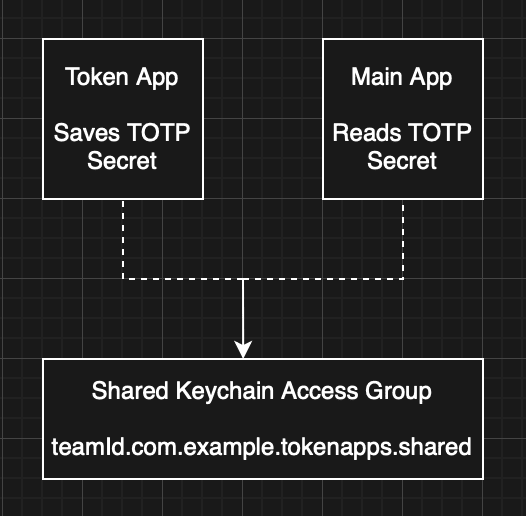
While iOS also provides App Groups for sharing files through a shared container, Keychain Access Groups are specifically designed for sharing sensitive credentials and should be used when data requires the security guarantees of the Keychain.
Access Control Attributes
When creating Keychain items, developers can specify Access Control Attributes that determine when and how items can be accessed. Two commonly used attributes are:
kSecAccessControlUserPresence: Requires the user to authenticate via biometrics (Touch ID/Face ID) or device passcode each time the item is accessed. If biometrics are enrolled, either biometrics or passcode can be used. This provides device-level authentication without requiring app-specific credentials.
kSecAccessControlBiometryCurrentSet: The most restrictive option, requiring authentication via the currently enrolled biometric data. If a user adds or removes a fingerprint or Face ID enrollment, the Keychain item becomes permanently inaccessible, forcing re-creation with fresh biometric enrollment. This attribute does not allow passcode fallback.
The choice between these attributes significantly impacts security posture, particularly in multi-user or shared device scenarios.
Case Study: Shared 2FA Token Implementation
To illustrate the security implications of Keychain Access Groups, let’s examine a real-world architecture involving two applications:
- Token App: A dedicated TOTP generator that creates and stores 2FA tokens
- Main App: A primary application with a login screen that retrieves tokens from the Token App’s shared Keychain item
Architecture Overview
The Token App allows users to create entries for 2FA accounts, similar to Google Authenticator or Authy. When a user adds an account, the app:
- Accepts a username and secret key (typically via QR code scan)
- Creates a Keychain item containing the TOTP secret and associated username
- Protects the item with
kSecAccessControlUserPresence - Stores the item in a shared Keychain Access Group accessible to both apps
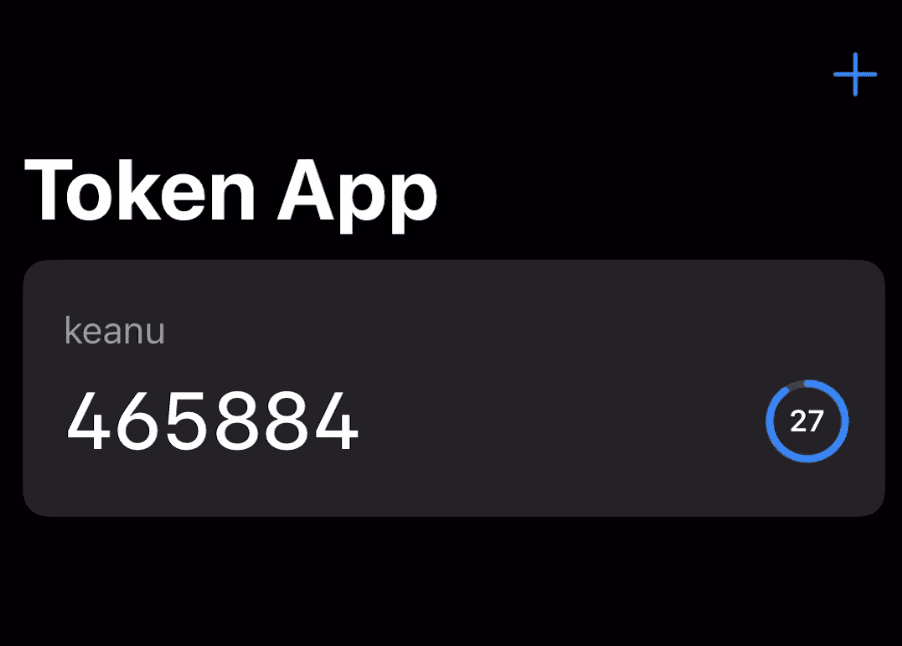
The Main App provides a login screen with fields for username, password, and a 2FA token. Beside the token field is a “Retrieve” token button.
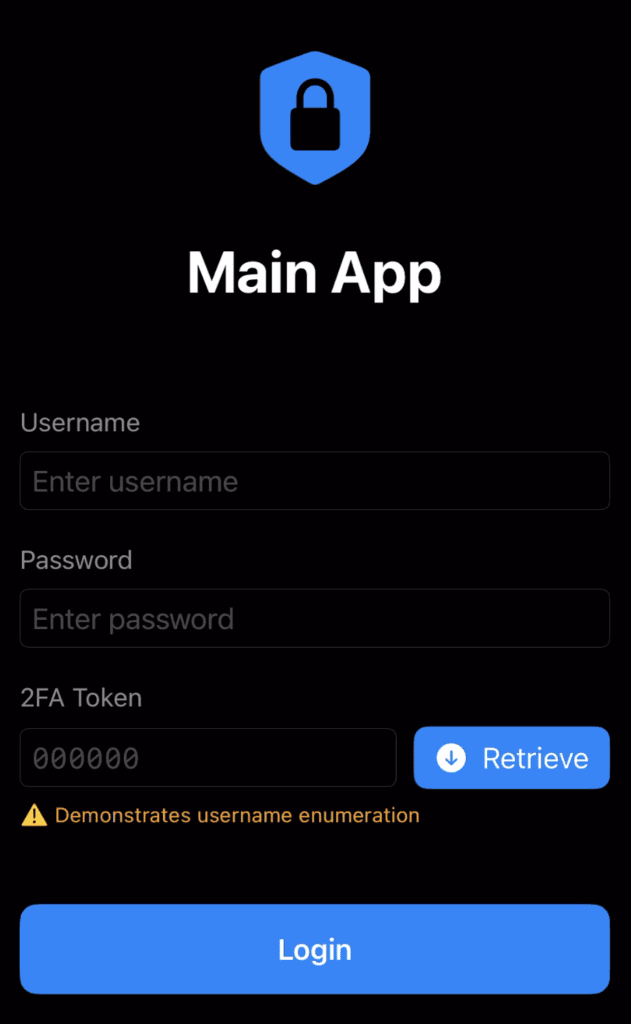
Authentication Flow
The authentication flow works as follows:
- User enters their username and password into the Main App
- User taps “Retrieve” token button
- Main App checks if the Token App is installed using a custom URL scheme
- If installed, Main App queries the shared Keychain item for an entry matching the entered username
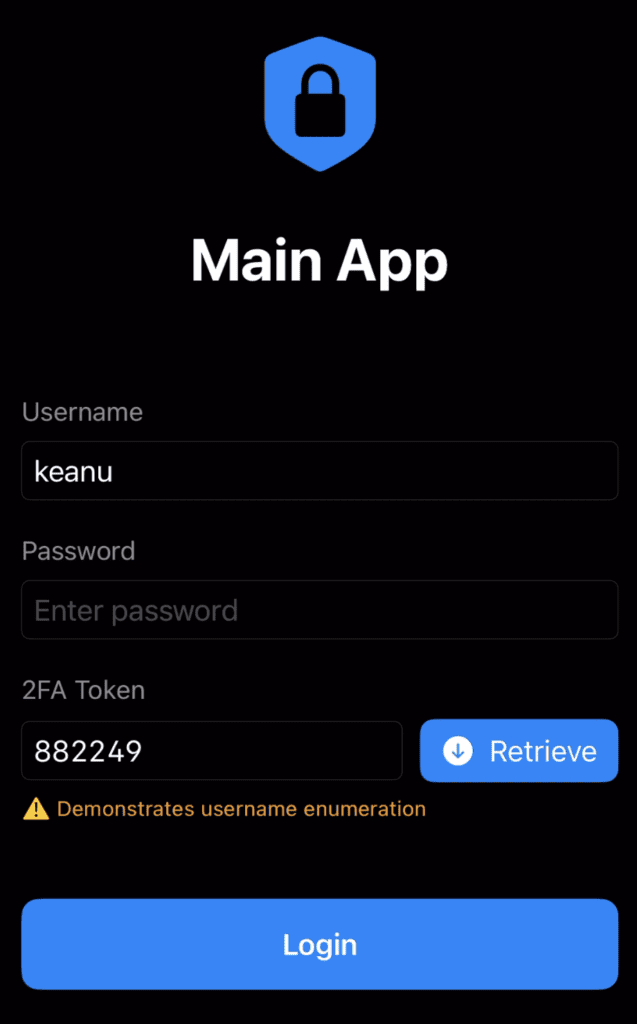
- Main App retrieves the TOTP secret and generates a current 6-digit token
- Token is automatically populated in the 2FA field
- User submits login credentials
Implementation Details
The Main App checks for the Token App’s presence using custom URL schemes, and passes the username as a query parameter:
// Check if Token App is installed
let username = usernameField.text ?? ""
let urlString = "tokenapp://check?username=\(username)"

guard let url = URL(string: urlString),
      UIApplication.shared.canOpenURL(url) else {
    // Token App not installed
    showError("Token App not found. Please install it to use this feature.")
    return
}

// Token App is installed (or ANY app declaring tokenapp:// is installed)
// Username potentially leaked
retrieveTokenFromKeychain()
The Token App declares this scheme in its Info.plist:
<key>CFBundleURLTypes</key>
<array>
    <dict>
        <key>CFBundleURLSchemes</key>
        <array>
            <string>tokenapp</string>
        </array>
    </dict>
</array>
Creating the shared Keychain item in the Token App:
// Create access control for user presence
let access = SecAccessControlCreateWithFlags(
    nil,
    kSecAttrAccessibleWhenUnlockedThisDeviceOnly,
    .userPresence,
    nil
)

// Create Keychain item
let query: [String: Any] = [
    kSecClass as String: kSecClassGenericPassword,
    kSecAttrAccount as String: username,
    kSecAttrService as String: "com.tokenapp.totp",
    kSecValueData as String: secretData,
    kSecAttrAccessGroup as String: "TEAMID.com.tokenapp.shared",
    kSecAttrAccessControl as String: access as Any
]

let status = SecItemAdd(query as CFDictionary, nil)
Retrieving the token in the Main App:
// Query for Keychain item
let query: [String: Any] = [
    kSecClass as String: kSecClassGenericPassword,
    kSecAttrAccount as String: username,
    kSecAttrService as String: "com.tokenapp.totp",
    kSecAttrAccessGroup as String: "TEAMID.com.tokenapp.shared",
    kSecReturnData as String: true,
    kSecUseOperationPrompt as String: "Authenticate to retrieve your 2FA token"
]

var result: AnyObject?
let status = SecItemCopyMatching(query as CFDictionary, &result)

if status == errSecSuccess, let data = result as? Data {
    // Generate TOTP from secret
    let token = generateTOTP(from: data)
    tokenTextField.text = token
}
Security Issues Identified
While this implementation provides a smooth user experience, it introduces several security vulnerabilities that could be exploited by malicious actors with varying levels of device access.
Issue 1: Username Enumeration
Vulnerability: The Main App reveals whether a username is valid before password verification occurs.
When a user enters a username and taps “Retrieve”, the app attempts to retrieve a matching Keychain item. If a token is successfully retrieved and displayed, the user now knows:
- The username exists and is valid
- A 2FA token is available for that account
This occurs regardless of whether a password has been entered, effectively allowing username enumeration without any authentication. An attacker with access to the device can systematically test usernames to identify valid accounts.
Impact: Reduces the search space for brute force attacks and provides reconnaissance information about which accounts exist in the system.
Issue 2: Data Leakage via URL Parameters
Vulnerability: Sensitive data is unnecessarily embedded in URL parameters where it is exposed to dynamic analysis tools.
iOS custom URL schemes are not unique; multiple applications can register the same scheme. iOS does not prevent multiple applications from registering the same URL scheme. Apple’s own documentation acknowledges that when a conflict exists, there is no guarantee over which app will receive the request.
The Main App implementation compounds this issue by passing the username as a query parameter when checking for the Token App:
let urlString = "tokenapp://check?username=\(username)"
UIApplication.shared.canOpenURL(URL(string: urlString)!)
This is problematic for a straightforward reason: canOpenURL() only needs the scheme to determine whether a handler is installed; the query string is ignored entirely for that check. The username is included in the URL with no functional purpose.
It is worth noting that canOpenURL() is handled entirely by the system. It queries the OS registry of registered URL scheme handlers and returns a boolean. The URL is never delivered to any other app, and scheme hijacking via this call is not possible. The leakage risk here is within the calling app’s own process, where the full URL including query parameters is visible to dynamic analysis tools.
Any URL passed to canOpenURL() is visible to dynamic analysis. Hooking the method with Objection on the Main App reveals the full URL, including the username, in plaintext:

This is something I have observed many times during engagements.
Impact: Usernames (and in some real-world cases, cryptographic secrets) are unnecessarily exposed in URL parameters where they can be captured by dynamic analysis tools, appear in crash reports, or be recorded by third-party analytics SDKs.
Issue 3: Weak Access Controls
Vulnerability: Using kSecAccessControlUserPresence instead of kSecAccessControlBiometryCurrentSet allows authentication via device passcode.
The Token App protects shared Keychain items with userPresence, which accepts either biometric authentication or the device passcode. While this provides convenience, it creates security risks:
Shared Device Risk: If multiple people know a device’s passcode (family members, friends, etc.), any of them can access 2FA tokens simply by entering the passcode when prompted. The Main App has no way to distinguish between the device owner and someone who knows the passcode.
Weak Passcode Risk: Many users choose easily guessable passcodes like 000000, 123456, or 1111. An attacker with brief physical access to an unlocked device could:
- Install the Main App (if not already present)
- Launch it and enter a known username
- Tap “Retrieve”
- When prompted for authentication, enter a guessed or shoulder-surfed passcode
- Obtain valid 2FA tokens
Biometric Addition Attack: Since userPresence allows anyone enrolled in the device’s biometrics to authenticate, an attacker with temporary device access could:
- Add their fingerprint or Face ID to the device
- Access 2FA tokens whenever they regain physical access
- Continue accessing tokens until the device owner notices the additional biometric enrollment
Using biometryCurrentSet would prevent this attack, as adding or removing biometric data would invalidate the Keychain item.
Impact: Device-level authentication is insufficient for sensitive operations like 2FA, particularly when devices are shared or have weak passcodes.
Issue 4: Keychain Persistence After Uninstall
Vulnerability: Keychain items remain accessible after both applications are uninstalled, creating a window for unauthorized access.
This is an iOS platform limitation rather than a developer error, but it has significant security implications. When an application is deleted, its sandbox is removed, but Keychain items persist. This is by design. It allows users to reinstall apps without losing passwords or credentials.
However, when combined with Keychain Access Groups, this creates a concerning scenario:
- User configures Token App with their 2FA account
- Both apps create/access the shared Keychain item
- User uninstalls both applications (perhaps switching to different apps)
- Keychain item remains on device, encrypted but present
- Someone with device access reinstalls both apps
- Token App should clear old items on first launch, but if it doesn’t (or isn’t launched), the item persists
- Main App can access the old Keychain item and generate valid 2FA tokens
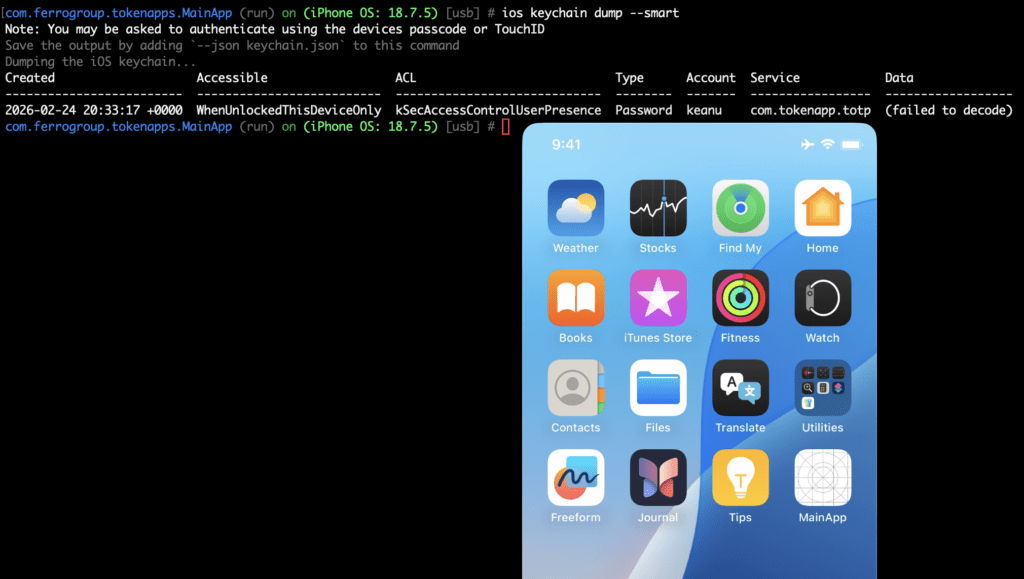
In one security assessment, I encountered an application that failed to clear Keychain items on first launch. After reinstalling the app, I was immediately prompted for biometric authentication for the previous user’s account, granting instant access to their data without any credentials.
Impact: Sensitive data can persist on devices long after users believe they’ve removed it, creating privacy and security risks during device resale, sharing, or theft.
Conceptual Exploitation Scenario
To understand the real-world impact of these issues, consider this attack scenario:
Attacker Profile: Someone with temporary physical access to an unlocked iOS device (family member, colleague, device repair technician, etc.)
Attack Steps:
- Attacker observes victim using the Main App and notes the username (or username is populated by ‘remember me functionality)
- With temporary access to the unlocked device, attacker launches the Main App, enters the victim’s username, and taps “Retrieve”
- When prompted for authentication:
– If attacker knows the device passcode (common in families): they enter it
– If attacker has added their biometrics earlier: uses their fingerprint/face - Main App successfully retrieves a valid 2FA token
Alternative Scenario – Post-Uninstall Attack:
If both apps were previously installed and configured, an attacker could simply reinstall both apps without ever launching the Token App and immediately gaining access to previously configured tokens without any setup.
Mitigation Recommendations
For Developers
1. Use Stronger Access Controls
For highly sensitive data like 2FA tokens or banking credentials, prefer biometryCurrentSet over userPresence:
let access = SecAccessControlCreateWithFlags(
    nil,
    kSecAttrAccessibleWhenUnlockedThisDeviceOnly,
    .biometryCurrentSet,  // More restrictive
    nil
)
This ensures:
- No passcode fallback
- Keychain item becomes invalid if biometrics change
- Forces re-setup if device biometrics are modified
2. Clear Keychain Items on First Launch
Always implement cleanup logic that runs on the first launch after installation:
func clearPreviousKeychainItems() {
    let hasLaunchedBefore = UserDefaults.standard.bool(forKey: "hasLaunchedBefore")

    if !hasLaunchedBefore {
        // Clear all Keychain items in our access group
        let query: [String: Any] = [
            kSecClass as String: kSecClassGenericPassword,
            kSecAttrAccessGroup as String: "TEAMID.com.example.shared"
        ]
        SecItemDelete(query as CFDictionary)

        UserDefaults.standard.set(true, forKey: "hasLaunchedBefore")
    }
}
3. Don’t Rely on URL Schemes for Security Decisions
Custom URL schemes should not be used as a security mechanism. Instead:
// Bad: Using URL scheme as security check
if UIApplication.shared.canOpenURL(URL(string: "tokenapp://")!) {
    retrieveToken()
}

// Better: Check Keychain directly and handle gracefully
if let token = tryRetrieveToken() {
    displayToken(token)
} else {
    showSetupInstructions()
}
If you must check for app presence, understand that the check can be bypassed and implement defense in depth.
4. Avoid Username Enumeration
Username enumeration is an inherent risk of any “Retrieve Token” style button — querying the Keychain by username before password verification will always reveal whether an entry exists for that username. There is no clean way to prevent this while keeping the convenience feature intact.
The only straightforward mitigation is to remove the button entirely. Require users to open the Token App manually, copy the current token, and paste it into the login form. This is the standard interaction model for standalone 2FA apps and eliminates the enumeration vector completely.
For Security Researchers
When assessing applications that use Keychain Access Groups:
- Enumerate Shared Groups: Check entitlements files for
keychain-access-groups - Test Persistence: Uninstall and reinstall apps to check for Keychain cleanup
- Check Access Controls: Use tools like Keychain-Dumper or Objection to inspect protection attributes
- URL Scheme Analysis: Identify custom schemes and test for hijacking
- Authentication Flow: Map when Keychain access occurs relative to user authentication
- Biometric Testing: Test with both biometric and passcode authentication methods
Conclusion
Keychain Access Groups are a powerful feature for creating seamless multi-app experiences, particularly for sharing authentication credentials and cryptographic keys. However, convenience and security exist in tension. What makes an app easier to use can also make it easier to compromise.
The issues outlined in this article stem from a common pattern: treating device-level authentication as sufficient protection for application-level secrets. Device passcodes and biometrics protect against strangers and opportunistic attackers, but they don’t defend against insider threats, social engineering, or attackers with temporary physical access.
For developers building applications that handle sensitive data, particularly 2FA tokens, banking credentials, or health information, the key takeaways are:
- Defense in Depth: Layer app-specific authentication on top of device authentication
- Principle of Least Privilege: Use the most restrictive access controls appropriate for your data
- Data Lifecycle Management: Implement proper cleanup of sensitive data when no longer needed
- Threat Modeling: Consider attackers with varying levels of access, not just remote adversaries
By understanding these security implications and implementing appropriate mitigations, developers can build multi-app architectures that provide both convenience and robust security.
The demonstration iOS applications referenced in this article are available on GitHub for developers who want to explore these concepts hands-on.